Open a collection in the theme editor (Collections > Default collection) and select the Collection section.
Filters
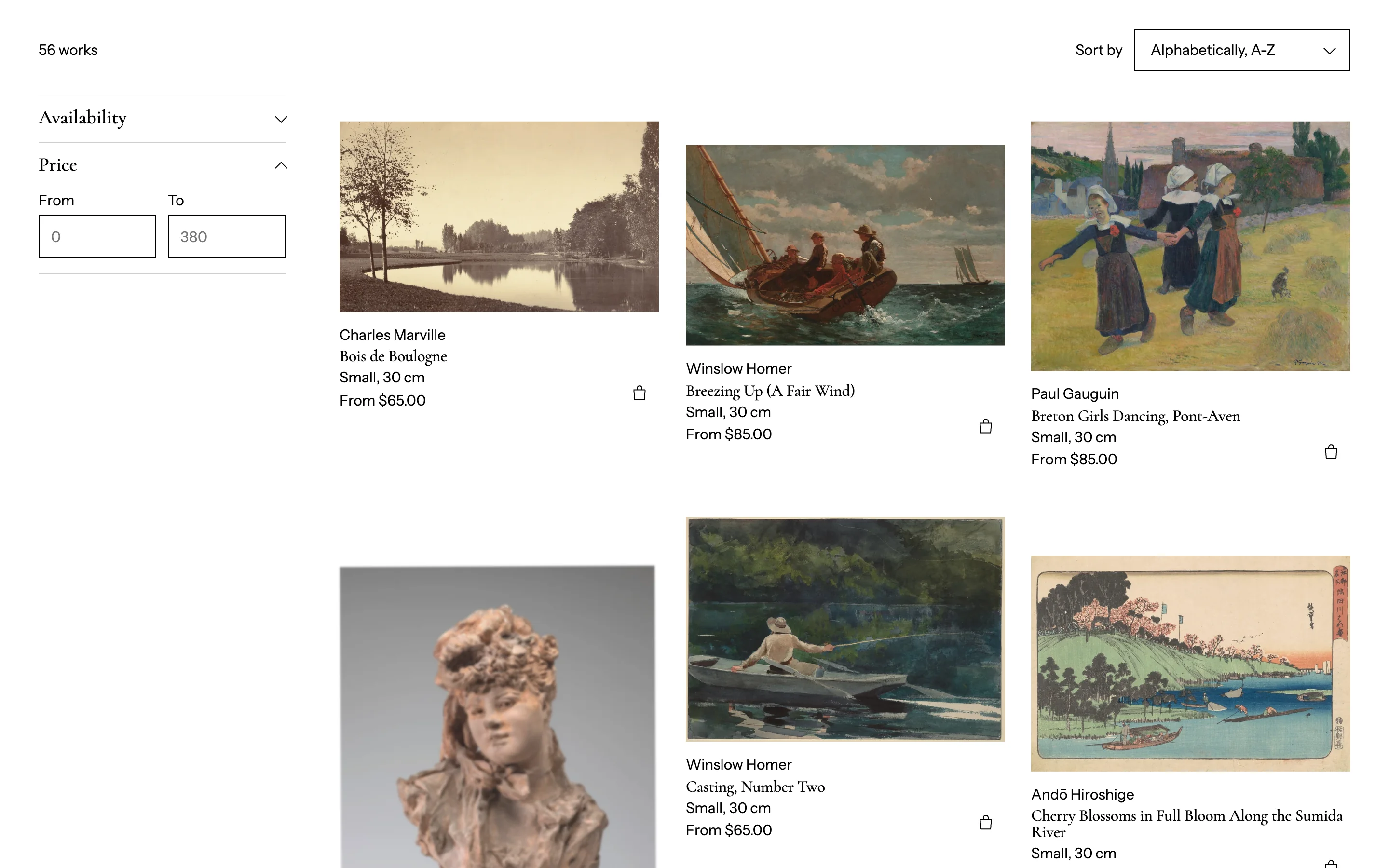
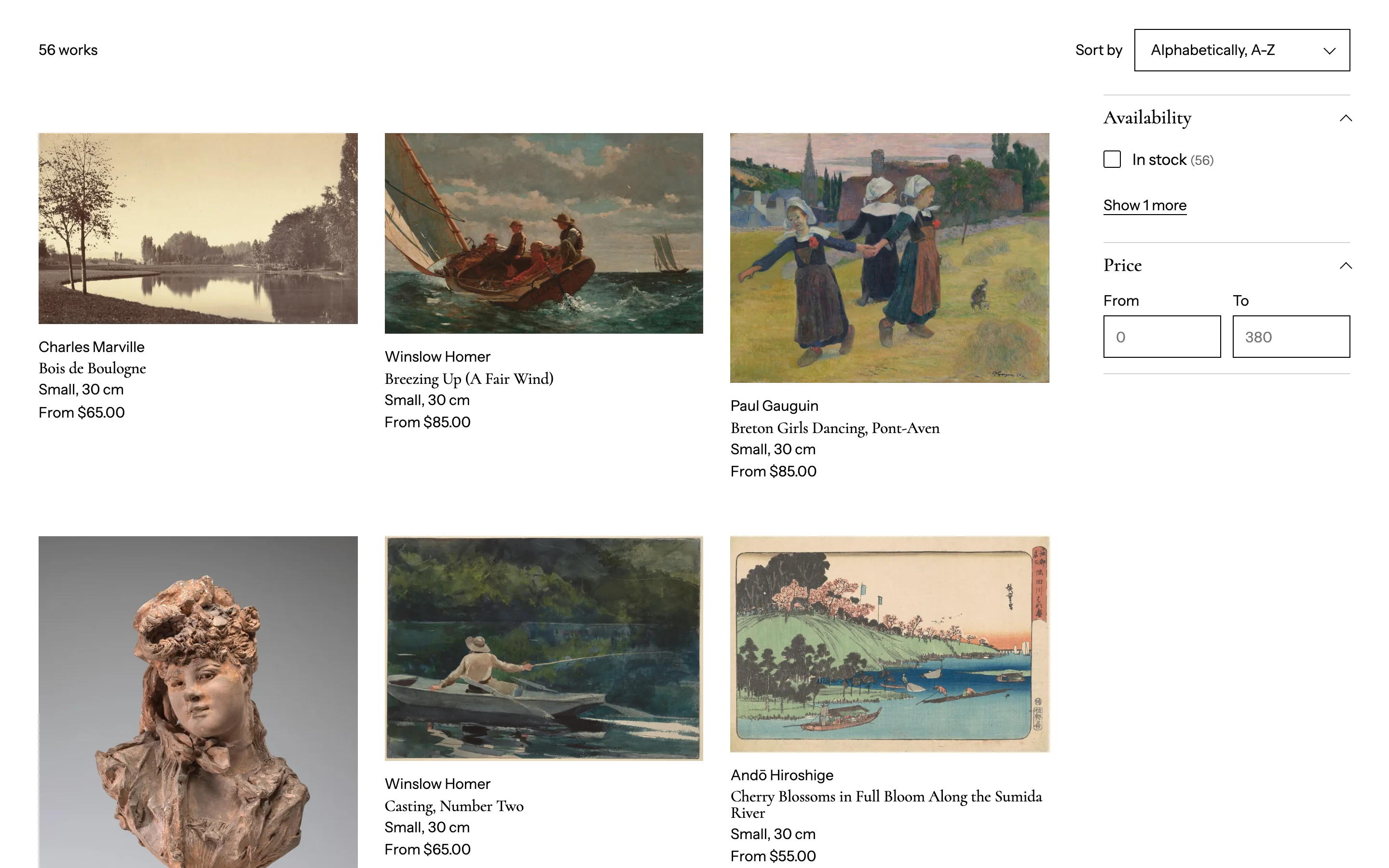
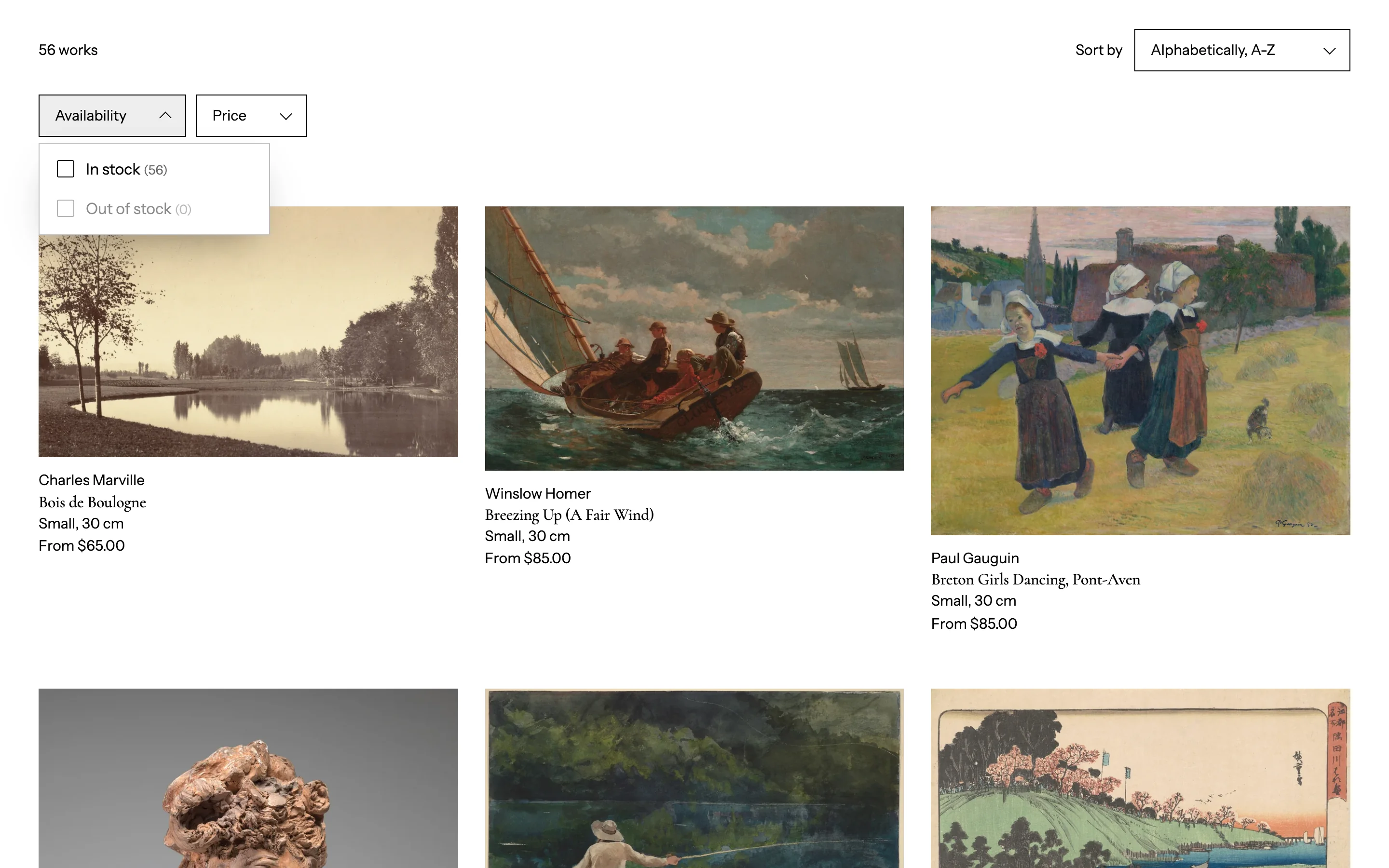
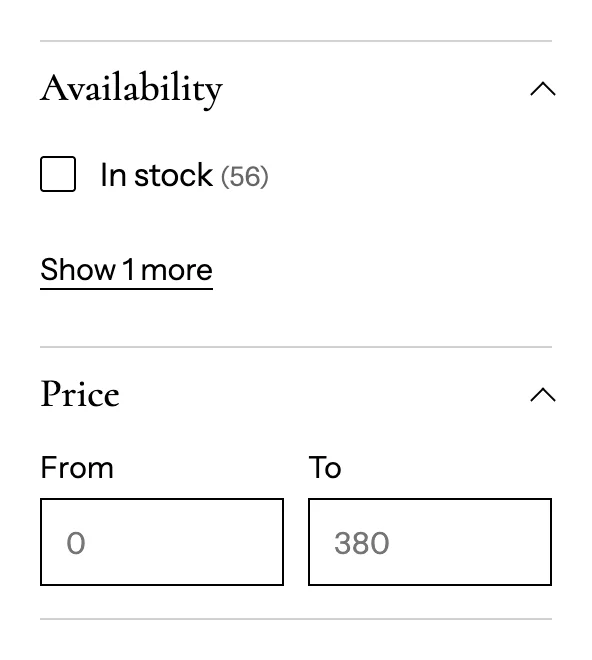
Filters come from Shopify's free Search & Discovery app. Add as many as you like there: availability, price, product type, vendor (artist), tags, and any product or variant metafield such as Medium or Orientation. Drag them into order in the app. Clean Art shows them all, with color or image swatches when a filter's display is set to swatches.
In the Collection section:
| Setting | What it does |
|---|---|
| Enable filtering | Turns filters on |
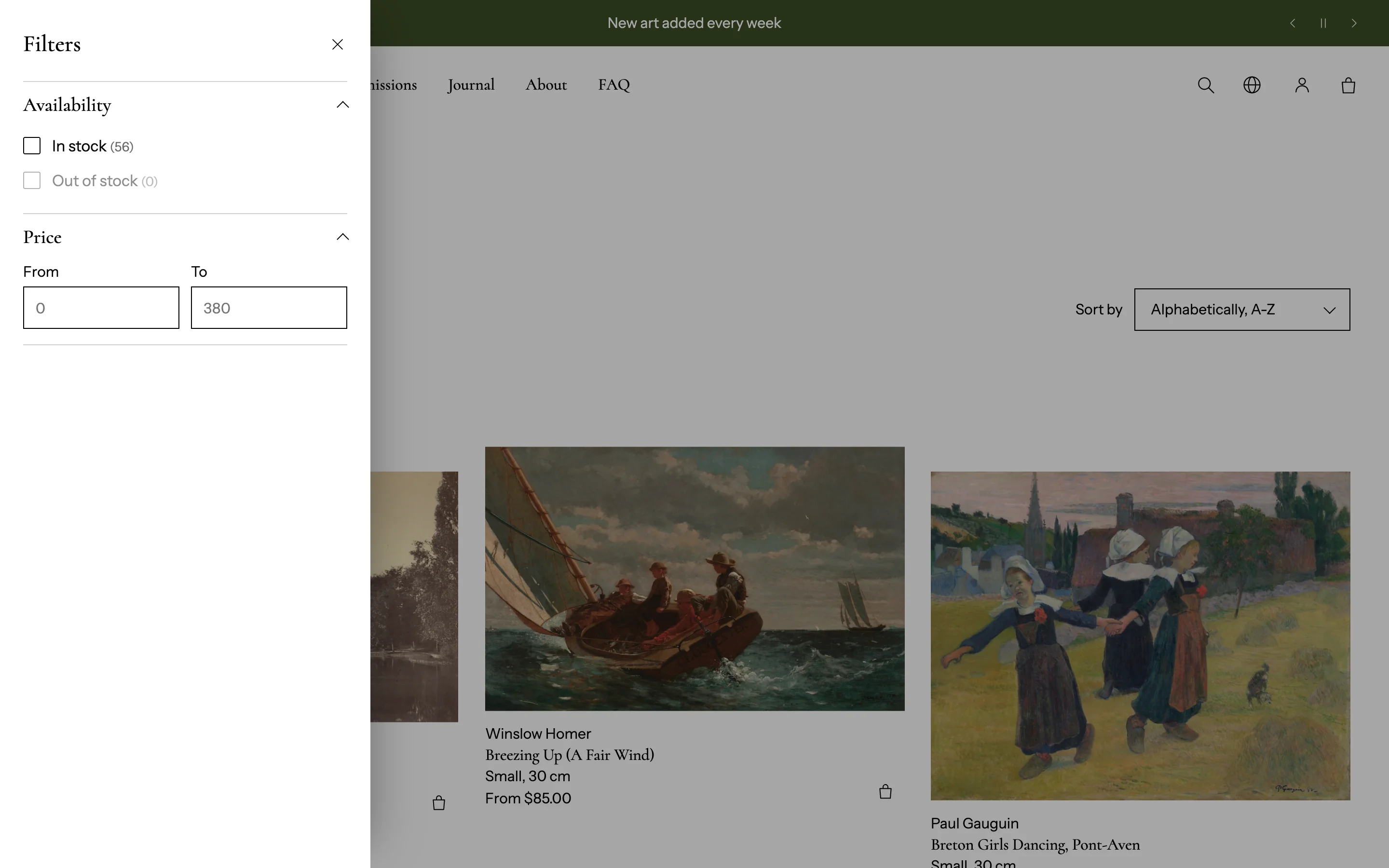
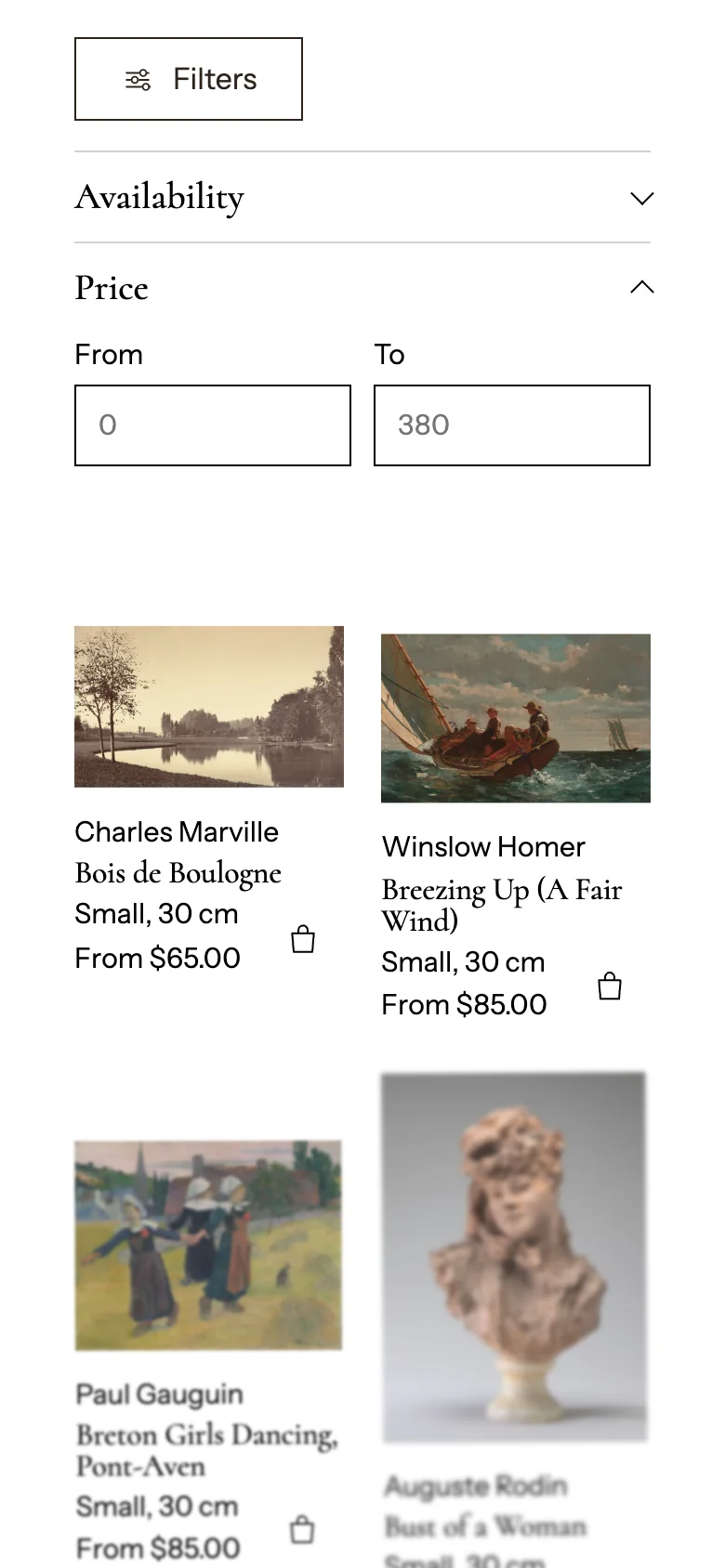
| Filter position | Sidebar on the left, sidebar on the right, a row above the products (each filter opens as a dropdown), or a drawer opened by a Filters button. On phones, filters always open from a Filters button |
| Open filter groups | Price and groups in use, all groups, or only groups in use (sidebar and drawer) |
| Values shown before Show more | Long filters show the first values and a "Show N more" link; values in use always stay visible. 0 shows every value |
| Show product counts | The number after each value |
Active filters show as removable chips with Clear all. With the drawer, the drawer stays open after a filter is applied, so shoppers can pick several in a row.
Sorting and pagination
- Enable sorting: the Sort by menu.
- Products per page, Columns on desktop and on mobile.
- Pagination: numbered pages, a Load more button, or infinite scroll.
Look
- Card animation: Flow (columns drift as you scroll), Bloom in, Rise in, or None.
- Image shape and Image display override the product card settings for this grid.
- Show collection image, Show breadcrumbs, color scheme and padding.
Product card details are in Product cards.
Collection list page
The page at /collections starts with Collection tiles: add a tile per collection with its own image. To list every collection automatically, add a Collections grid section.